
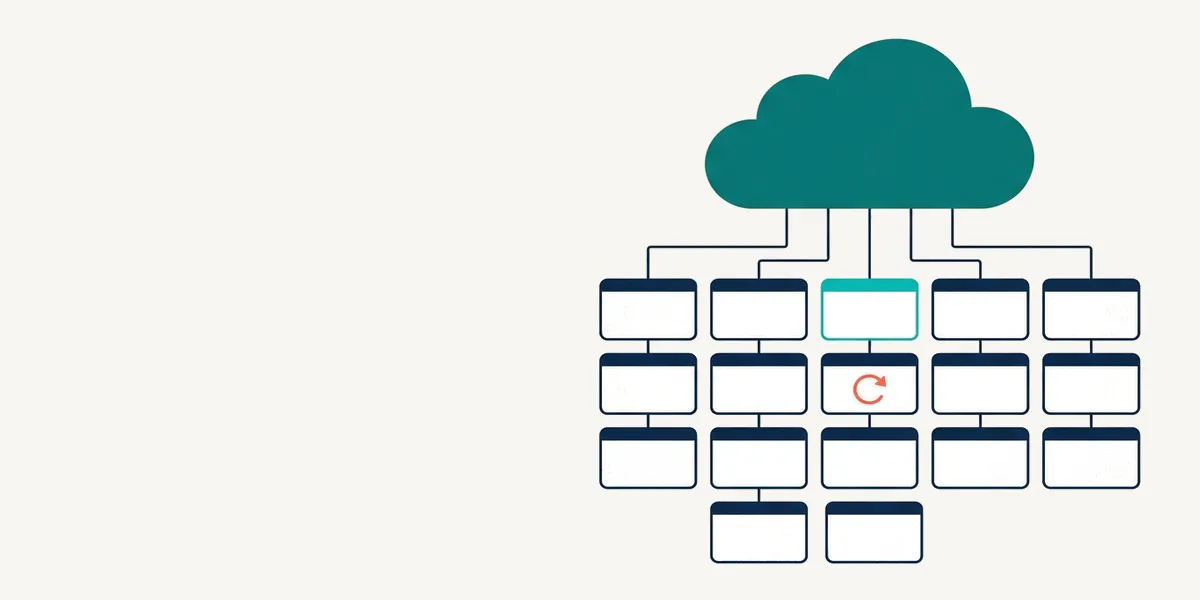
Put a site behind Cloudflare and it starts caching your images, CSS and JavaScript straight away. Your pages are a different story. By default, Cloudflare passes every HTML request through to your server, so PHP still builds every page for every visitor.
To cache pages, Cloudflare needs a “Cache Everything” rule. Set up the usual way, that is dangerous on a classifieds site. A seller’s dashboard or an admin page can end up in the cache and get served to the next visitor. And an edited listing keeps its old price until the copy expires.
This post shows how to run ShopClass behind Cloudflare with the free Cloudflare plugin. It installs cache rules that skip logged-in visitors, asks Cloudflare to purge a listing’s pages as soon as it changes, and shows how much Cloudflare is serving from cache.
We built this plugin first for our own site, TuffClassified. Cloudflare cached its images, but PHP still built every page. Caching pages at Cloudflare was the quickest fix we could make without touching the server.
Later we moved TuffClassified to nginx’s page cache. It runs on our own VPS, so we can put a cache right in front of PHP. The reason was the purge. Cloudflare does not clear a page the instant you ask, so an edited listing can show its old copy for a short while. That was never critical, but it was not good enough for us. A purge in nginx on our own server is instant.
So which one is for you? If you are on shared hosting or a cPanel plan, you cannot change the web server, and Cloudflare is the cache you can reach. This plugin is for you. If you run your own VPS, start with nginx. You can also use both.
ShopClass already says which pages are safe
Cloudflare cannot tell a public listing from a private dashboard by looking at the URL. So ShopClass says it in a header. A public page, served to someone who is not logged in, gets:
Cache-Control: public, s-maxage=30, max-age=0, must-revalidates-maxage=30 lets a shared cache like Cloudflare keep the page for 30 seconds.
max-age=0 makes the visitor’s browser check again every time. A personal page,
such as a dashboard or a page that starts a session, gets private, no-store
and is never stored.
The plugin tells Cloudflare to follow that header, and adds a second check on top. The full rules are in the caching contract.
Install the plugin
Install it from Plugins → Manage plugins → Browse, or from the command line:
php oc-cli.php market:install cloudflareIt needs ShopClass 6.2.0 or later and PHP 8.0. Your site has to be a zone in your Cloudflare account. The settings page is under Plugins → Cloudflare.
Create an API token
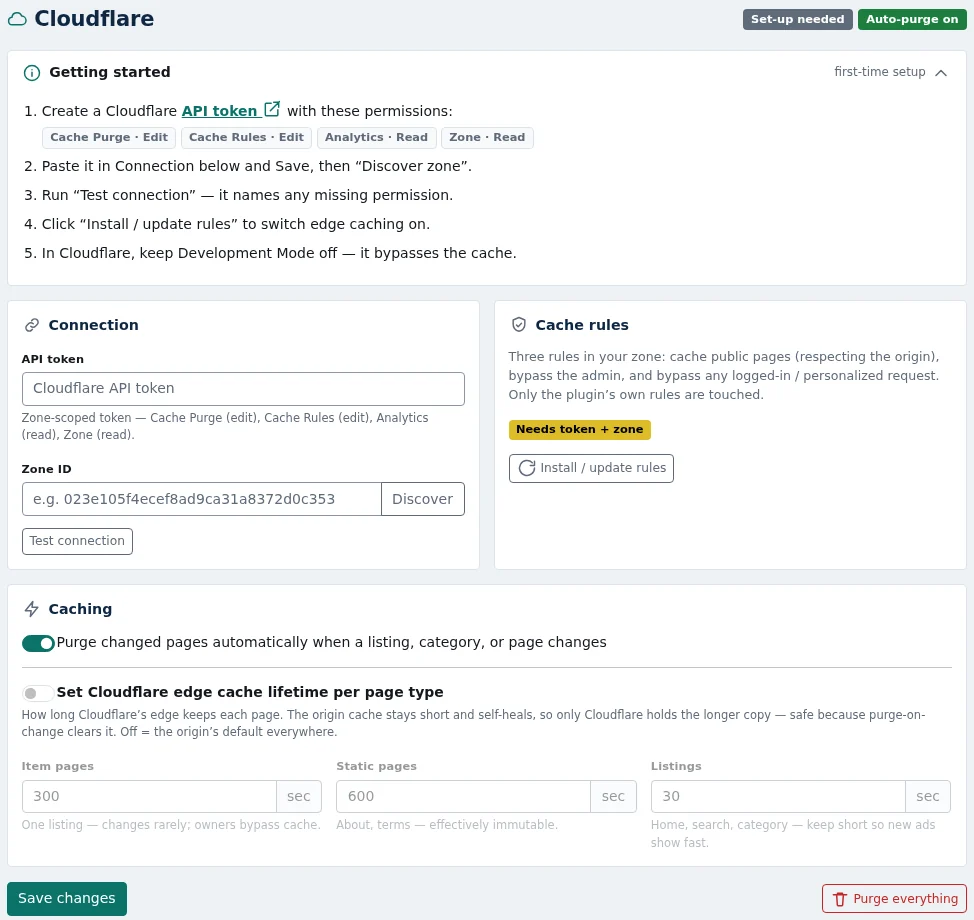
In the Cloudflare dashboard, create an API token scoped to your site’s zone, with these four permissions:
- Cache Purge: Edit, to remove changed pages
- Cache Rules: Edit, to install the rules
- Analytics: Read, for the stats on the settings page
- Zone: Read, to find your zone and check the connection
Then on the plugin’s settings page:
- Paste the token into API token under Connection, and press Save changes.
- Press Discover next to Zone ID. It looks up the zone from your site’s domain. You can also paste the Zone ID yourself.
- Press Test connection. It checks each permission on its own and names any that are missing. A token without Cache Purge shows up here, before a purge fails quietly later.
- Press Install / update rules.
One thing to check in Cloudflare itself: keep Development Mode off. It bypasses the cache, so nothing you set up here would show.
What the cache rules do
The plugin adds three rules to your zone’s cache rules:
- Cache public pages, respecting the origin. Any path outside
/oc-adminis eligible for caching, and Cloudflare takes the time to keep it from theCache-Controlheader ShopClass sends. This is the rule that makes Cloudflare cache HTML at all. It does what Cache Everything does, and the header and the two rules below keep it safe. - Bypass the admin. Anything under
/oc-adminis never cached. - Bypass personalized requests. Any request carrying one of ShopClass’s own cookies skips the cache.
The cookie list comes from ShopClass itself, so it stays correct when ShopClass updates. Today it is:
osclass, the session cookie, set at login or when a form saves somethingoc_cache_bypass, set when a visitor or an admin logs inoc_userLocale, set when a visitor picks a language
Every other cookie is ignored on purpose. If the rule bypassed on any cookie at all, one analytics cookie would turn every real visitor into a miss.
Why both? The header decides what Cloudflare may store. The cookie rule decides who may be served a stored copy. A logged-in visitor should never get one, even of a page that is public for everyone else.
The plugin only touches its own three rules. Your other rules are kept as they are, and uninstalling the plugin removes its rules.
Purge when a listing changes
Cloudflare’s copy of a page has to go away when the page changes. The plugin does this when a listing is posted, edited, deleted, enabled, disabled, activated, made premium or has its expiry changed. It purges:
- the listing’s page, plus one copy per language if you have more than one
- the home page
- the listing’s category page
- the seller’s public profile
- the sitemap index
It also purges when a category is added, edited or deleted, and when a static page is edited or deleted.
The switch for this is Purge changed pages automatically when a listing, category, or page changes, under Caching. It is on by default.
The purge is sent while the listing saves. If Cloudflare fails to answer, or the token has expired, the save still goes through. The failed addresses wait in a queue and are retried every hour for 48 hours.
Some changes show on every page: a new theme, saved settings, a plugin turned on or off, or maintenance mode. From version 1.2.0 the plugin purges the whole zone for these, on ShopClass 6.4.2 or later. On older versions it does the same on a theme switch, a plugin change or any settings save. A full purge also drops cached images, CSS and JavaScript, so your server gets more traffic for a short while. The plugin sends at most one a minute, and a skipped or failed one is retried every hour.
To clear everything by hand, press Purge everything, or from the command line:
php oc-content/plugins/cloudflare/bin/purge.phpKeep pages longer at the edge
With nothing else set, Cloudflare follows the 30 seconds ShopClass asks for. Because the plugin purges on change, it is safe to let Cloudflare keep some pages longer. Turn on Set Cloudflare edge cache lifetime per page type and set three times, in seconds:
| Field | Covers | Default |
|---|---|---|
| Item pages | one listing | 300 |
| Static pages | about, terms | 600 |
| Listings | home, search, category | 30 |
It is off by default. When on, the plugin sends a Cloudflare-CDN-Cache-Control
header that only Cloudflare reads. A cache on your own server keeps its short
30 seconds, because this plugin cannot purge it.
See what Cloudflare serves from cache
The Cache analytics card shows the last 24 hours for your zone: the cache hit ratio, total requests and how many were cached, and bandwidth with how much came from cache. It only reads. If the card stays empty, the token may be missing the Analytics permission, or there is no data for that window yet.
Check that it works
Ask for a public page twice and read the cf-cache-status header:
curl -sI https://example.com/ | grep -i 'cache-control\|cf-cache-status'curl -sI https://example.com/ | grep -i 'cache-control\|cf-cache-status'MISS and then HIT means Cloudflare is caching your pages. DYNAMIC means
the rules are not in place yet.
Now send a login cookie:
curl -sI https://example.com/ -H 'Cookie: oc_cache_bypass=1' | grep -i 'cache-control\|cf-cache-status'You should see private, no-store and BYPASS. If a request with that cookie
ever comes back as HIT, stop and fix the rules before anything else. That
setup can serve one person’s page to another.
Then edit a listing and request its page again. The first answer should be a
MISS, because the old copy was purged.
Limits
- Search and filter results are never purged. Every keyword, filter and page number is its own address, and there is no way to list them all. They rely on the Listings time, so keep it short.
- Listing changes purge by address, in batches of 30. Only a site-wide change or Purge everything clears the whole zone.
- A purge that keeps failing is dropped. The queue retries each address every hour for 48 hours, then gives up. The settings page then warns you how many were dropped, and the error log notes it too. Those pages stay stale until their time runs out, or until you press Purge everything. The queue also needs your site’s cron to run.
- Do not set long times. The fields go up to a day. Each form on a page carries a security token, and ShopClass stops accepting it two hours after it was made. A page cached much longer than an hour can show forms that answer your session has expired. We keep every time under an hour.
Behind Cloudflare, your server sees Cloudflare’s address in place of each visitor’s. That breaks login throttling and IP bans. Set up the real client IP as described in login throttling and the real client IP.
If you have your own server, the nginx FastCGI cache post covers the cache we use now. The two plugins purge from the same events and work side by side.
The plugin is free and GPL-licensed, on GitHub. Found a problem? Open an issue there.