
Some listings come with a file. A manual for a used camera, a sample pack, a set of design templates, a free extra. On a classifieds site, the seller usually ends up pasting a Google Drive link into the description, or emailing the file by hand to everyone who asks.
That works until the link gets passed around. This post shows how to let sellers attach the file to the listing itself, with our free Digital Goods plugin for ShopClass.
A note on where this plugin comes from. We do not use it on our own sites. Digital Goods started as an older Osclass plugin, and it looked too useful to leave behind, so we rebuilt it for the new ShopClass core. If you run it on a real site, we would like to hear how it goes.
What the plugin does
A seller attaches files when they post or edit a listing. Visitors get them through a download link that checks who is asking, and every download is counted.
It is free, GPL-licensed and on GitHub at mindstellar/shopclass-plugin-digital-goods.
One thing to know up front: the plugin does not take payment from buyers. More on that below.
Before you start
You need ShopClass 6.1.0 or newer and PHP 8.0 or newer, with the fileinfo extension.
It ships with PHP and is on by default.
Step 1: install it
In Plugins → Manage plugins, open the Browse tab, find Digital Goods and press Install. Or from the command line:
php oc-cli.php market:install digital-goodsNew to plugins? See Plugins in our docs.
Step 2: pick the categories
The plugin only works in the categories you choose. Press the settings link next to Digital Goods in Plugins → Manage plugins to open the category chooser. Pick something like “Ebooks” or “Templates”. Elsewhere, the upload field never appears.
Step 3: set the rules
Open Plugins → Digital Goods settings. There are four fields:
- Who can download: Signed-in visitors (the default), Anyone, or The seller only. The seller can always download their own files, whichever you choose.
- Files per listing: 3 by default, up to 20.
- Largest file (MB): 32 by default. Your server’s PHP limits still apply, and the screen shows the real ceiling: “This server will not accept more than … per file whatever is set here.”
- Accepted file types:
zip,7z,gz,pdfandepubout of the box.
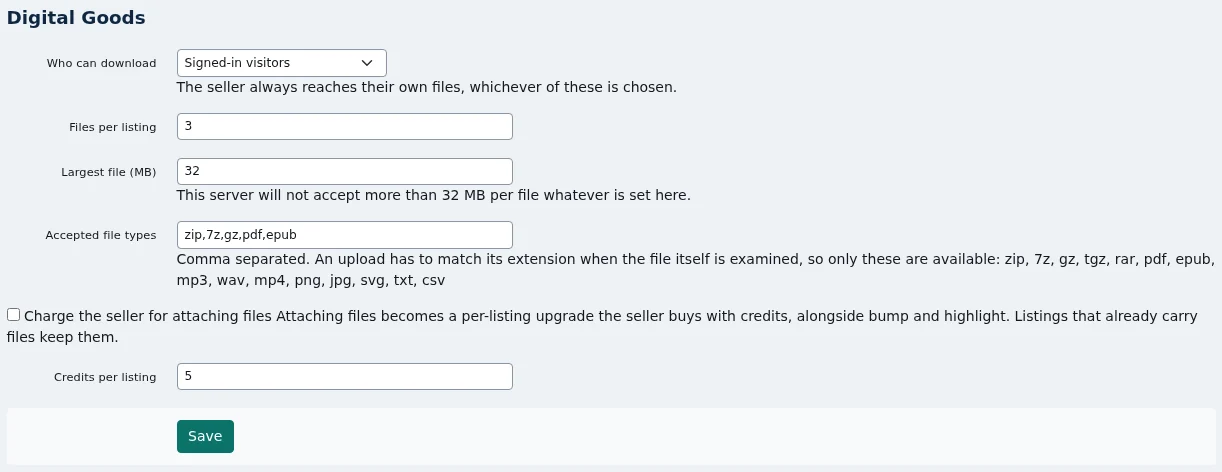
You can add more types, but only from a fixed list: zip, 7z, gz, tgz, rar,
pdf, epub, mp3, wav, mp4, png, jpg, svg, txt and csv. So for music,
add mp3 or wav. For software, zip usually covers it.
The list is fixed because each upload is opened and checked against its extension. A
PHP script renamed to .zip is refused.
What the seller does
On the post or edit form, the seller sees a Downloadable files field. Under it, a line tells them the limits, for example “Up to 3 file(s), 32 MB each. Accepted: zip, 7z, gz, pdf, epub”.
They pick their files and save the listing. If a file is too big, the wrong type, or over the count, they get a plain message saying which. The other files still go through.
The file keeps its name as a label. On disk, it gets a random name.
What visitors see
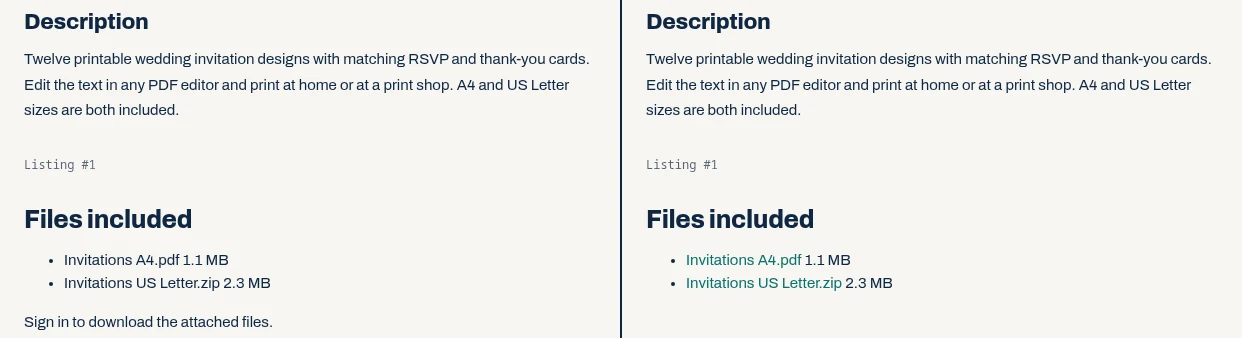
The listing page shows a Files included box with each file’s name and size.
If the visitor is allowed to download, each name is a link. If not, they see the names without links and a short note: “Sign in to download the attached files.” When the setting is The seller only, the note says the files are for the seller only.
Here is the same listing twice. On the left, a visitor who is not signed in sees the names and the note. On the right, a signed-in visitor gets links.
The link looks like /digital-goods/download/ followed by a 32-character token. Each
time someone opens it, the plugin checks the rule again. A visitor who is not allowed
lands back on the listing with the same note. A token that does not exist gets the same
“That file is not available.” answer as one you may not have, so nobody can guess which
tokens are real.
Where the files live, and why it matters
On local storage, files go into oc-content/downloads/digital-goods/ under a
random name. That folder is closed to the web, so the download link is the only way in.
It checks the rule, counts the fetch, then streams the file in chunks. Large files do not
fill PHP’s memory, and paused downloads can resume. This needs Digital Goods 2.1.0 or
later. Older releases kept files in the uploads folder, and upgrading moves them for you.
Download links stay the same.
On Apache the plugin closes the folder itself. On nginx, add a deny all rule for
/oc-content/downloads/. ShopClass’s own Docker images already have it. To keep the
files out of the web root entirely, set DG_PRIVATE_PATH in config.php. To let the web
server send the file instead of PHP, set DG_ACCEL_REDIRECT (nginx) or DG_XSENDFILE
(Apache). The plugin’s README has the exact lines.
On S3-compatible storage with signed URLs, the file sits in a private bucket. The download link checks the rule, counts the fetch, then sends the visitor to a signed URL that stops working after 5 minutes and saves the file under its own name. On ShopClass versions before 6.4, the URL follows the Signed URL TTL set in core instead. The file itself never passes through PHP.
On a public S3 bucket, the download link still applies the rule, but anyone who has a file’s address in the bucket can fetch it directly. The address is random and never shown, so it is hard to find. The settings page warns you when this is your setup.
If you use S3 storage, turn on signed URLs. In Settings → Storage, switch Active storage to Amazon S3-compatible and turn on Serve files through time-limited signed URLs. See Media & storage for the full setup.
When a listing is deleted, its files are deleted from storage too. Uninstalling the plugin removes all stored files along with its table and settings.
Seeing what gets downloaded
Plugins → Digital Goods downloads lists every attached file with its listing, size, download count and the date it was added.
Charging sellers to attach files
If your site uses ShopClass billing (6.2.0 and later), you can make attaching files a paid upgrade. Tick Charge the seller for attaching files and set Credits per listing (5 by default). It then sits next to bump and highlight in the list of things credits buy, under the name Downloadable files.
It is off by default, so turning the plugin on does not start charging anyone. Listings that already have files keep them. Once bought, the upgrade does not expire.
With charging on, the order is: the seller posts the listing, buys the upgrade with the Buy it with credits link on the edit form, then attaches the files. Files sent before the upgrade is bought are refused with a message.
To sell the credits themselves by card, add a payment plugin such as Stripe, as described in Currencies and paid listings. On 6.1.0 there is no billing, so attaching files is always free.
What it does not do
Straight from the code:
- No buyer checkout. Only the seller ever pays, and only to attach files. Buyers pay the seller the usual classifieds way, by contacting them and settling off-site.
- No per-buyer access. With Signed-in visitors, any signed-in member can download any attached file. There is no “only people who paid me” option. For a paid ebook, that means the plugin suits samples, manuals and free extras better than the paid file itself.
- The download link does not expire. The rule is checked on every use, so with Anyone set, a shared link works for everyone. Only the signed URL behind it on S3 storage is short-lived.
- A public S3 bucket is not private. Whoever has a file’s bucket address can fetch it without the link. Those downloads also go through PHP memory in full, so turn on signed URLs for large or private files.
- No download limits. Downloads are counted, not capped.
Found a problem or want one of these changed? Open an issue on GitHub.