
Forms & custom fields
A car listing needs Make, Model, Year and Mileage. A flat needs Bedrooms, Floor and Furnished. A job needs Salary and Contract type. ShopClass models all of that without code, through fields grouped into forms.
Forms in the admin panel.
The model, in three parts
Section titled “The model, in three parts”Fields are the individual inputs: Make, Year, Fuel type. A field is defined once and is reusable: the same Year field can sit in your Cars form and your Motorbikes form.
Forms are ordered groups of fields: Vehicle details, Property details.
Listings → Categories are what a form is attached to. A form applies to one or more categories. Its fields then appear when publishing in those categories, and as filters when browsing them.
Creating a form
Section titled “Creating a form”Forms → Manage forms is a two-panel builder: your forms on the left, your reusable fields on the right.
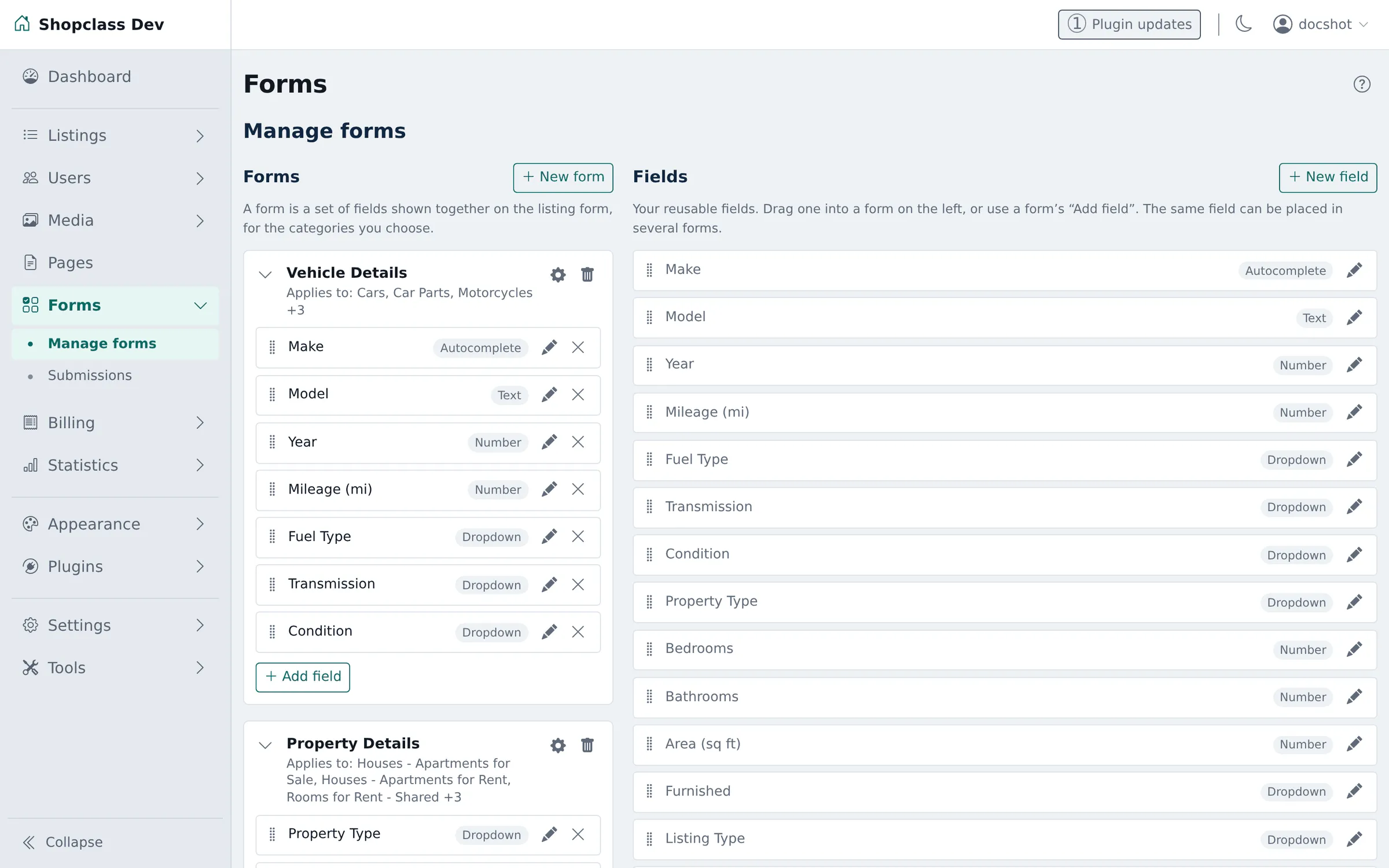
- Press + New form and name it.
- Drag fields in from the Fields panel on the right, or use the form’s own + Add field to make a new one.
- Drag to reorder: this is the order visitors see. You can also reorder from the keyboard: focus the grip and use the arrow keys.
- Open the form’s settings (the gear icon) to attach it to the categories it applies to. Each form shows its Applies to: line underneath.
Field types
Section titled “Field types”| Type | Use for |
|---|---|
| Text | Short free text. Configurable placeholder, help text, default, max length, and a regex pattern (a text-matching rule). |
| Text area | Long text. Configurable rows. |
| Number | Numeric values, with min, max and step. |
| Dropdown | One choice from a list. |
| Radio buttons | One choice, all options visible. |
| Checkbox | A single yes/no. |
| URL | A link, optionally opening in a new tab. |
| Date | A single date. |
| Date range | A period with a start and an end. |
| An address, validated as one. | |
| Phone | A telephone number. |
| Autocomplete | Text with suggestions, with a configurable minimum length before suggesting. |
Plugins can register further types, which appear in the picker alongside these.
Choose the narrowest type that fits. A Number for Year gives you
numeric filtering and sorting; the same thing as Text gives you
neither, and sorts 1998 after 10000.
Editing a field opens its settings beside the form:
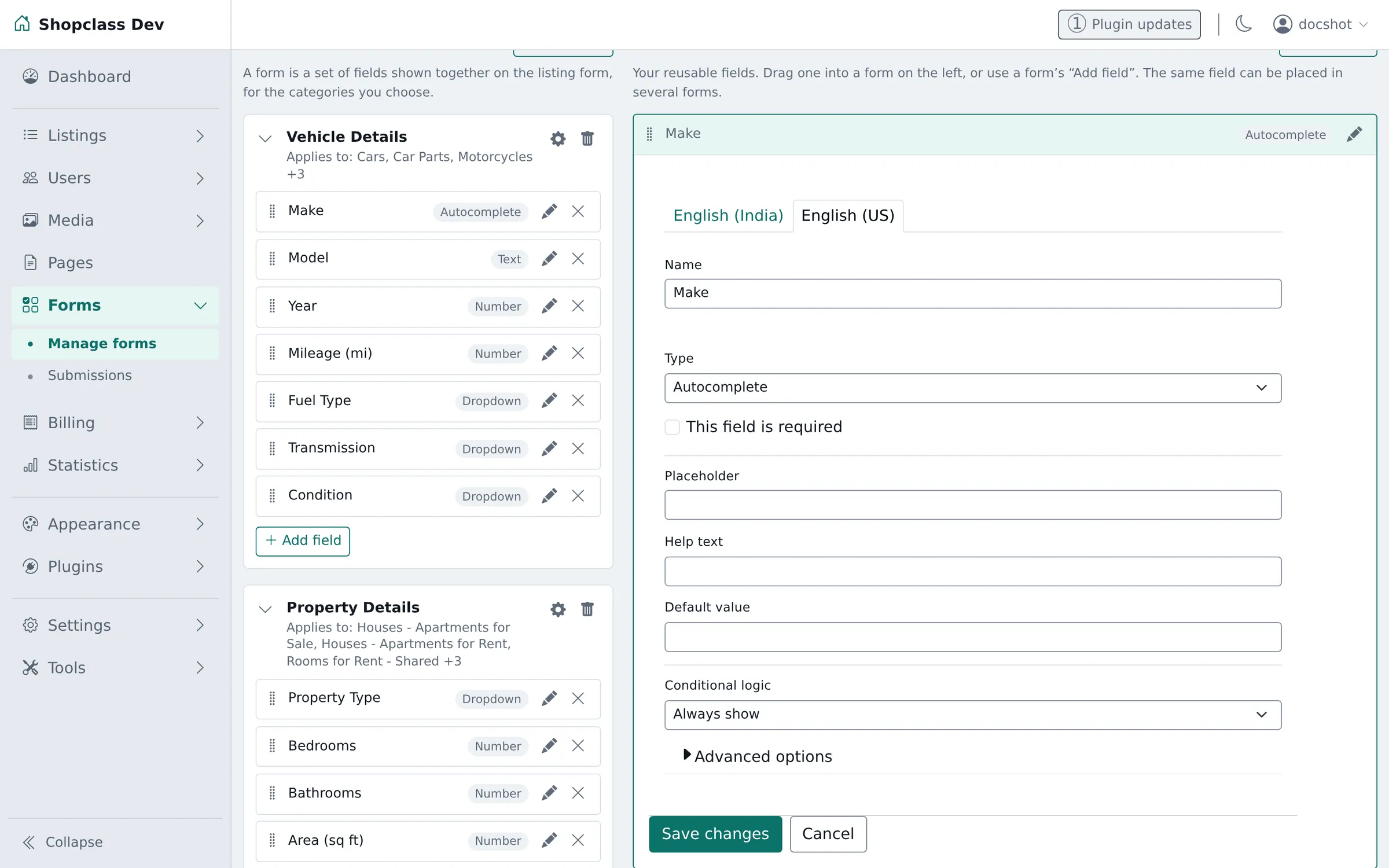
- Name has a tab per active language. The default language is required; see languages.
- This field is required makes it mandatory on the publish form.
- Placeholder, Help text and Default value turn a bare input into one a seller can answer without guessing.
- Advanced options holds the rest, including Tick to allow searches by
this field (see making fields searchable),
and, for a URL field, Tick to open links in new tab. A URL field takes only
httpandhttpsaddresses.
Reused fields change everywhere
Section titled “Reused fields change everywhere”The admin says so when you edit one: “Editing this field changes it in every form that uses it.” A field’s card shows how many forms it appears in.
That is the point: one Year field means one consistent set of values across every vehicle category. But rename it or change its options, and every form using it changes at once.
If you need a variation, create a separate field rather than editing the shared one.
Conditional logic
Section titled “Conditional logic”Every field carries a Conditional logic setting with three modes:
| Mode | Effect |
|---|---|
| Always show | The default. The field is on the form for everyone. |
| Show only when… | The field appears only when another field matches a condition: show Engine size only when Fuel type is not Electric. |
| Required only when… | The field is always visible, but only mandatory when the condition matches: make Registration number required only when Condition is Used. |
The available conditions are is, is not, is greater than, is less than and is filled.
Required only when is the one people miss. It lets you demand the detail that matters for one kind of listing, without blocking every other kind.
This is how you keep a publish form short. A form with forty fields, most irrelevant to any given listing, gets abandoned. A form that reveals the next question based on the last one does not.
Inheritance down the category tree
Section titled “Inheritance down the category tree”A form attached to a parent category applies to its children too. Attach Vehicle details to Vehicles and it covers Cars, Motorbikes and Vans without attaching it three times.
Attach shared fields high in the tree, and specific ones low.
Legacy fields from before Forms
Section titled “Legacy fields from before Forms”Fields attached directly to categories (the older Osclass model) still work. The admin marks them with a “n cats · no form” badge and explains: attached directly to n categories, outside any form. Drag it into a form to manage it here.
They are live on those listings, just invisible to the forms interface. Dragging one into a form brings it under management without disturbing the data already captured against it.
There is no deadline to do this, but doing it means one place to look.
Form submissions
Section titled “Form submissions”A form can also sit on a page, to collect enquiries rather than describe a listing: a contact form, an application, a request form.
Forms → Submissions shows what has come in.
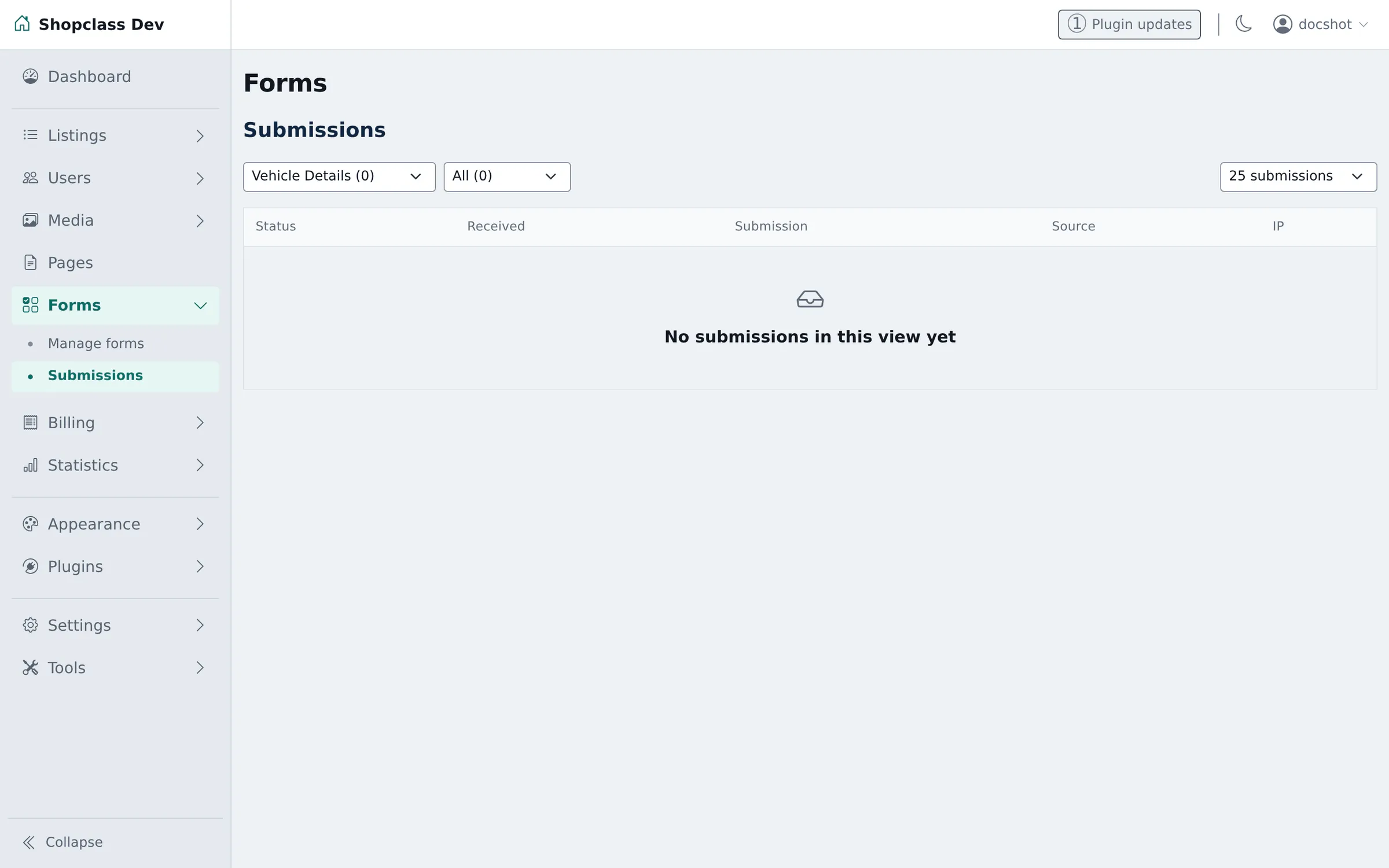
Each submission shows who sent it (if they were logged in), their IP, when it arrived, and a status of New, Read or Spam.
Submissions are stored in the database, not e-mailed away and forgotten, so nothing is lost if mail delivery fails.
Deleting a form deletes the submissions made through it. Export anything you need to keep first.
Changing a field after listings use it
Section titled “Changing a field after listings use it”Existing values are kept, but the consequences differ by change:
- Renaming a field is safe: the stored values are untouched.
- Removing an option from a dropdown leaves listings holding a value that is no longer offered. They keep it and display it; nobody can select it again.
- Changing a field’s type may make existing values unreadable by the new type. Add a new field instead and retire the old one.
- Deleting a field deletes its values from every listing. There is no undo.
Making fields searchable
Section titled “Making fields searchable”A field is only useful as a filter if search knows about it. In the field’s Advanced options, tick “Tick to allow searches by this field” for the fields you want visitors to narrow by (price ranges, year, bedrooms) and leave descriptive fields unmarked. Every searchable field adds a query cost and another control in the sidebar, so choose the two or three that actually change what people find.