
A user wrote to me a few days ago. He was building a directory site with ShopClass, and he planned to embed it in a site he already had. So it had to look the same as that site.
His list was short and exact:
- dark mode with a near-black background,
#0B0B0D - a red primary colour,
#D10000, and a yellow secondary colour,#FCBF11 - the Inter font
- pill-shaped buttons
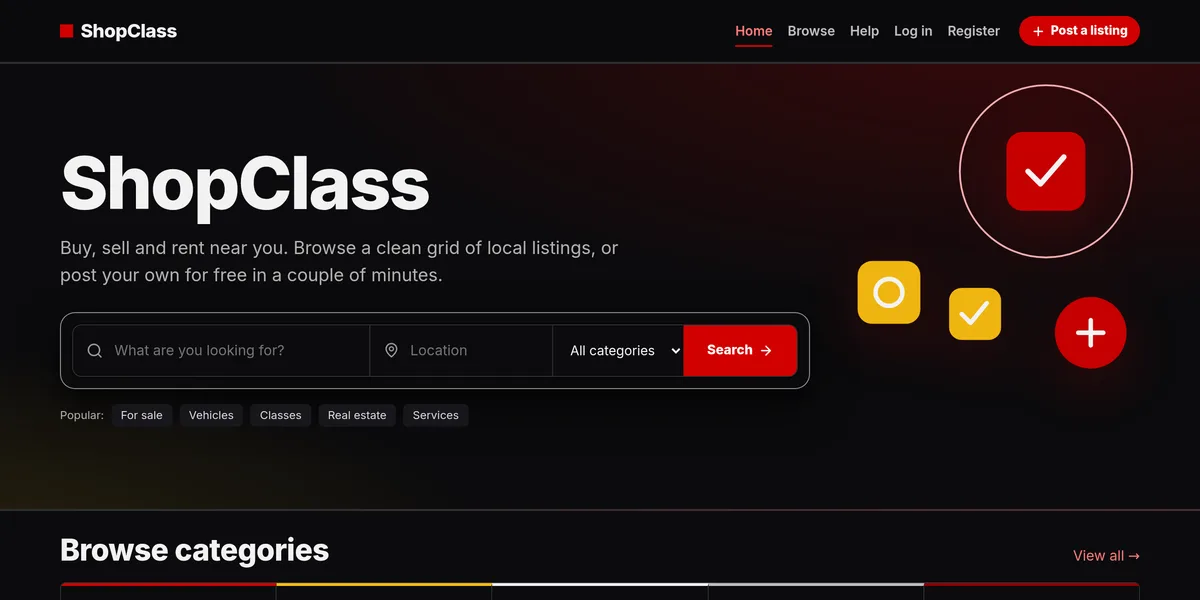
Storefront, our default theme, has three colour palettes and a light or dark choice in its settings. It does not have a box for any colour you like, a font picker or a button shape. So none of this was a setting. This is Storefront’s own dark mode, before any change:

You could edit Storefront’s CSS directly. It works, but the next Storefront update replaces the file and your changes are gone. I did not want him to lose his work on the first update.
A child theme with one CSS file
A child theme is a theme that names another theme as its parent. It holds only the files it changes. Everything else comes from the parent, and the parent keeps updating underneath it.
A brand change needs three small files, and only one of them holds your changes. Make a folder
oc-content/themes/storefront-custom/ with these in it.
index.php tells ShopClass what the theme is, and who its parent is:
<?php/*Theme Name: Storefront CustomVersion: 1.0.0Parent Theme: storefront*/functions.php loads your stylesheet after Storefront’s own:
<?phpfunction storefront_custom_styles(){ osc_enqueue_style('storefront-custom', osc_current_web_theme_styles_url('custom.css'));}osc_add_hook('header', 'storefront_custom_styles', 6);css/custom.css holds the changes. Storefront draws everything from CSS variables, so you
mostly set variables, not rules:
@import url("https://fonts.googleapis.com/css2?family=Inter:wght@400;600;700;800&display=swap");
:root {    --font-heading: "Inter", system-ui, sans-serif;    --font-body: "Inter", system-ui, sans-serif;
    --color-accent: #D10000;    --color-accent-500: #D10000;    --color-accent-fill: #D10000;    --color-accent-fill-hover: #A80000;
    --color-accent-2: #FCBF11;    --color-accent-2-500: #FCBF11;    --color-accent-2-fill: #FCBF11;    --color-accent-2-fill-hover: #E0A600;}
:root[data-theme="dark"] {    --color-bg: #0B0B0D;    --color-surface: #16161A;    --color-text: #F2F2F3;}
/* Pill buttons */.btn, .sf-btn { border-radius: 999px; }
This is the short version, to show the idea. The full file also sets the lighter and darker
steps of each colour, the grey tones for dark mode, and dark mode for visitors whose system
is set to dark. It is in our
GitHub discussion, with a ready
storefront-custom.zip to download.
Then, in the admin:
- Open Appearance and activate Storefront Custom.
- In Storefront’s settings, set Colour scheme to Dark, Light or Auto.
That was it. Here is the same page with the child theme on. Only the child theme changed.
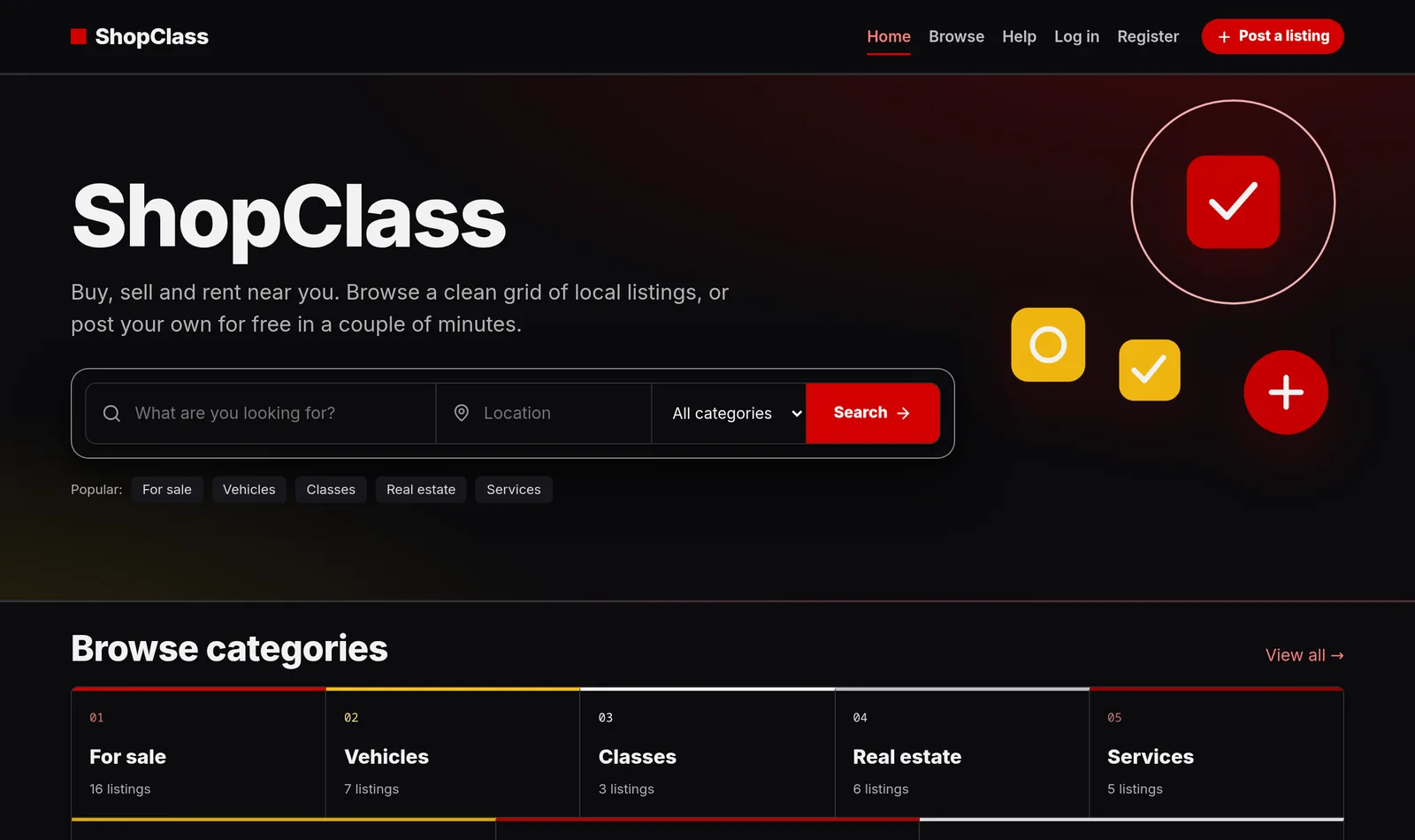
The buttons are pills now, and the font is Inter. On a listing page, the seller box and its button pick up the red too:

He wrote back the same evening: “That worked.”
Two things I found while making it
A yellow button needs dark text. Storefront puts white text on its secondary colour. White on yellow is very hard to read, so the full file sets dark text on those buttons. If your secondary colour is light, keep that rule.
The secondary colour is also the warning colour. Storefront uses it for delete buttons. With yellow as the secondary colour, “Delete” turned yellow and looked like a warning, not a delete button. The full file keeps delete buttons red.
You only see these when you click through the real site. So after you change the colours, open a listing, your account pages and a form, in light and in dark mode.
Using your own colours
- Your primary colour is the
--color-accent-*set, and your secondary colour is the--color-accent-2-*set. Put your colour at500and on-fill. - The steps
100to400are lighter, and600to900are darker. Any “tints and shades” tool makes them for you. - Your dark mode background is
--color-bg, and cards use--color-surface. Keep the grey steps in the same tone as your background, or the borders look tinted. - To serve the font yourself, without Google, put the
.woff2files instorefront-custom/fonts/and use an@font-facerule instead of the@importline.
When Storefront updates
Storefront updates replace Storefront’s folder, not yours. Your child theme stays as it is, and it picks up the parent’s fixes and new features by itself.
The one thing to watch is a variable that Storefront renames in a later version. So after a Storefront update, take one quick look at your site. The child theme docs explain what a child inherits, the order ShopClass looks for files in, and the two rules that keep a child from breaking its parent.
We may add colour, font and button-shape settings to Storefront later. Until then, a child theme is the safe way to change the look. If you make one, I would like to see it. Post it in GitHub Discussions.